How to send offer flyers on WhatsApp, not spam
To send offer flyers to customers on WhatsApp without being spam, message only people who gave you their number and said yes to offers, and stop the moment anyone asks: those are WhatsApp's own rules. Then keep it to about one flyer a week, and put daily deals on your Status or a Channel, where customers choose to look.
Flyerworks is a flyer maker and shelf tag maker for supermarkets and retail stores worldwide. I built it, so weigh what I say about it with that in mind. The rules below are WhatsApp's own, from its business policy and help pages, listed in the sources at the end and read on 2 November 2026. WhatsApp changes its business features often, so check the current pages before you change how you send.
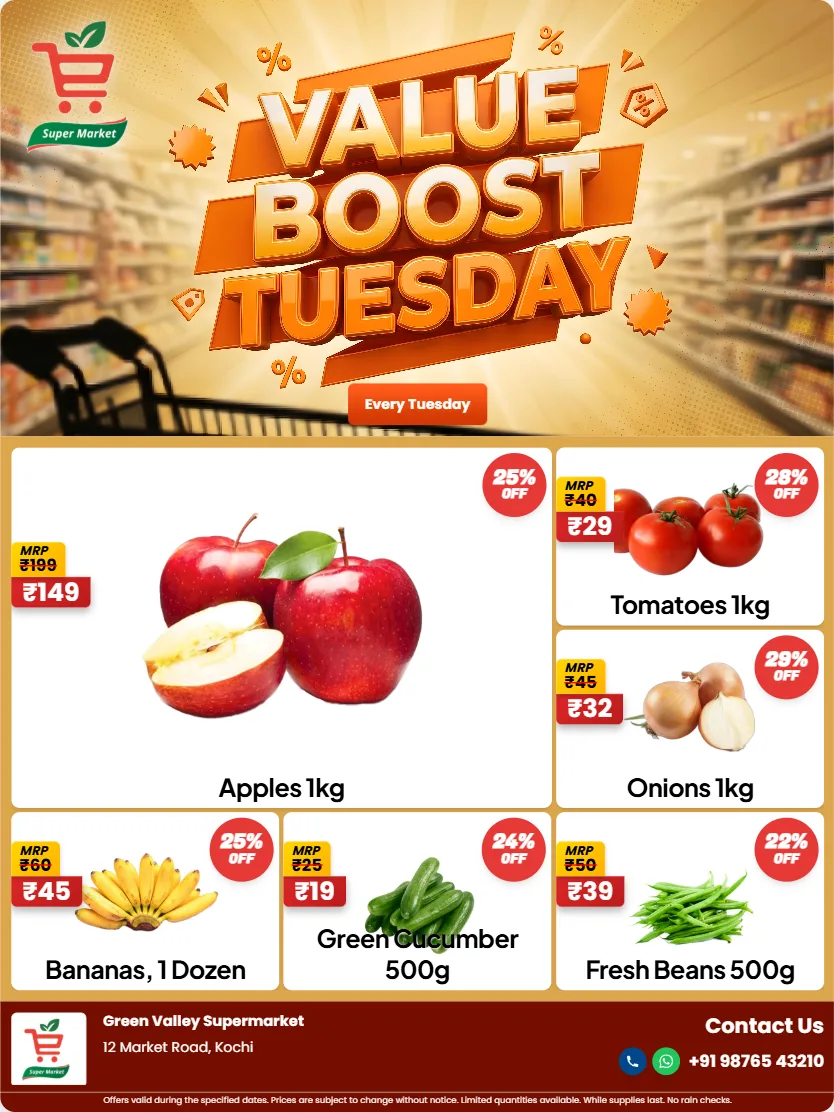
A weekly offer flyer made in Flyerworks at the WhatsApp size. The store and the prices are made up for this post.
What counts as spam on WhatsApp?
A message is spam when the person didn't expect it, and WhatsApp judges a business by what its customers do with its messages. Its Business Messaging Policy covers the free WhatsApp Business app as well as the paid platform, and it is plain about four things[1]:
- Permission first. You may only contact people who "have given you their mobile phone number" and from whom you have "received opt-in permission" to message them.
- Stopping means stopping. You must respect every request "to block, discontinue, or otherwise opt out of communications from you", including removing that person from your contacts list.
- No surprises. Do not "confuse, deceive, defraud, mislead, spam, or surprise people with your communications."
- Blocks and reports count against you. "Users can block or report businesses", and WhatsApp's systems may limit how many messages a business can send based on that feedback. With enough negative feedback, WhatsApp may limit or remove your access, and it can bar a business from its products for good.
WhatsApp's general guidelines also list "bulk messaging, auto-messaging, auto-dialing, or automation" through unofficial apps among the things that get accounts suspended[2]. So the cheap "WhatsApp bulk sender" tools sold to shops are the fastest way to lose the number your customers know.
A regular who asked for your Tuesday offers is glad to get the flyer. A number copied from a bill book that never agreed to anything is the one who taps Report.
How do I get customers to agree to my offer messages?
Ask, and keep a note of who said yes. WhatsApp accepts permission given "in person or on paper", by text message or on a website, and the person must be told the business name they are agreeing to hear from[3].
For a shop, that can look like this:
- Ask at the billing counter. "Shall I send you our weekly offers on WhatsApp? One message a week." Write the number down only if they say yes.
- Put a small sign at the counter with your store name, your WhatsApp number and what they'll get ("this week's offers, every Monday"), so customers can message you first. The Business app gives you a QR code and a short link for this; WhatsApp lists "QR Codes, short links" among its free ways for customers to start a chat[4].
- Label the ones who agreed. The WhatsApp Business app has labels to organise and filter customer chats[4]. An "Offers OK" label is your list.
- Set a greeting message that thanks new customers and tells them how to stop ("Reply STOP and we won't send offers"). The Business app sends greeting messages by itself to new customers who start a chat, but it won't act on a STOP for you: remove that customer's label the same day.
- Ask separately for each kind of message. WhatsApp's own best-practice advice is to get permission for each type of message, so people don't block you for messages they didn't ask for[1]. Someone who wants a message when their order is ready may not want your weekly flyer.
Which WhatsApp feature should a shop use for offers?
There are five main ways to put an offer flyer in front of customers, and they differ in who chooses to see it.
| Feature | Who sees the flyer | Does the customer choose? | Best for | Cost |
|---|---|---|---|---|
| Status | The people you choose to share it with | Yes, they open your Status | Daily deals, fresh stock, today-only prices | Part of the free Business app |
| Channel | People who follow your channel | Yes, they follow and can leave | A weekly flyer for customers who want every offer | Part of the free Business app |
| Community announcement group | Members of your Community | Yes, if they joined from your invite | Announcements to customers who chose to join | Part of the free Business app |
| Broadcast from the Business app | Each person on the list, as a private chat | Only if you asked them first | The weekly flyer for regulars who said yes | Check your app: Business Broadcasts are only in select countries |
| WhatsApp Business Platform | Each person, through an approved message template | Only if you asked them first | Chains with software that sends for them | Charged for each delivered message |
Status is the softest way in. Photos and text on Status "disappear from view after 24 hours", and you decide who can see each one[5]. Your customers don't get a ping for each update, so nobody feels chased. It suits a single offer, like one shelf tag (below).
A Channel is a one-way feed people follow. WhatsApp's own example is following "daily specials from your local bakery", followers' phone numbers stay private, and channel notifications are "muted by default"[6]. The catch is that a muted channel is easy to forget, so say on the counter sign which day the flyer comes out.
Broadcasts land in each customer's private chat, which is why they get read and why they get reported. WhatsApp now describes a Business Broadcasts feature that sends "private 1:1 messages to multiple people at once", with scheduling and insights, but marks it "available to eligible users in select countries"[4]. Whatever your app offers, the permission rule above still applies to every name on the list.
Groups and Communities are where many shops start, and where the permission problem is easiest to miss. A group can hold up to 1,000 people, and people can control who is allowed to add them to one[10]. Adding customers to an offers group without asking is the same as messaging them without asking. A Community is the tidier version: it links groups and has an announcement group for messages to every member at once[9]. If you run one, invite people with a link they choose to tap rather than adding them yourself.
The WhatsApp Business Platform is for stores with software that sends messages for them. Marketing messages there go out only as templates WhatsApp has approved[1], and Meta charges for each delivered message, at a rate set for each country[7]. Customers can also switch off marketing from a business in their settings, and WhatsApp may cap how many marketing messages one person gets from all businesses[11].
How often should a shop send offer flyers?
Once a week in private chats, and daily deals only on Status. These are my own rules of thumb from building a flyer tool for shops, not WhatsApp's:
- One flyer a week in private chats, on the same day, so it becomes the thing customers wait for. Monday or the day before your offer starts works for most grocery stores.
- Daily deals on Status only. A one-day price drop on tomatoes belongs on Status, not in fifty chats.
- One message, one image. Send the flyer as a single picture with one line of text: what it is and until when. Five separate product photos is five notifications.
- Send in shop hours. Between about 9 am and 8 pm is safe; a message at 11 pm about onions is the one that gets reported.
- Answer replies. A customer who asks "is the oil still there?" is the reason you're on WhatsApp. Quick replies in the Business app save typing the same answer every time[4].
What should a WhatsApp offer flyer look like?
It's read on a phone, in a chat, often without being opened full screen. So:
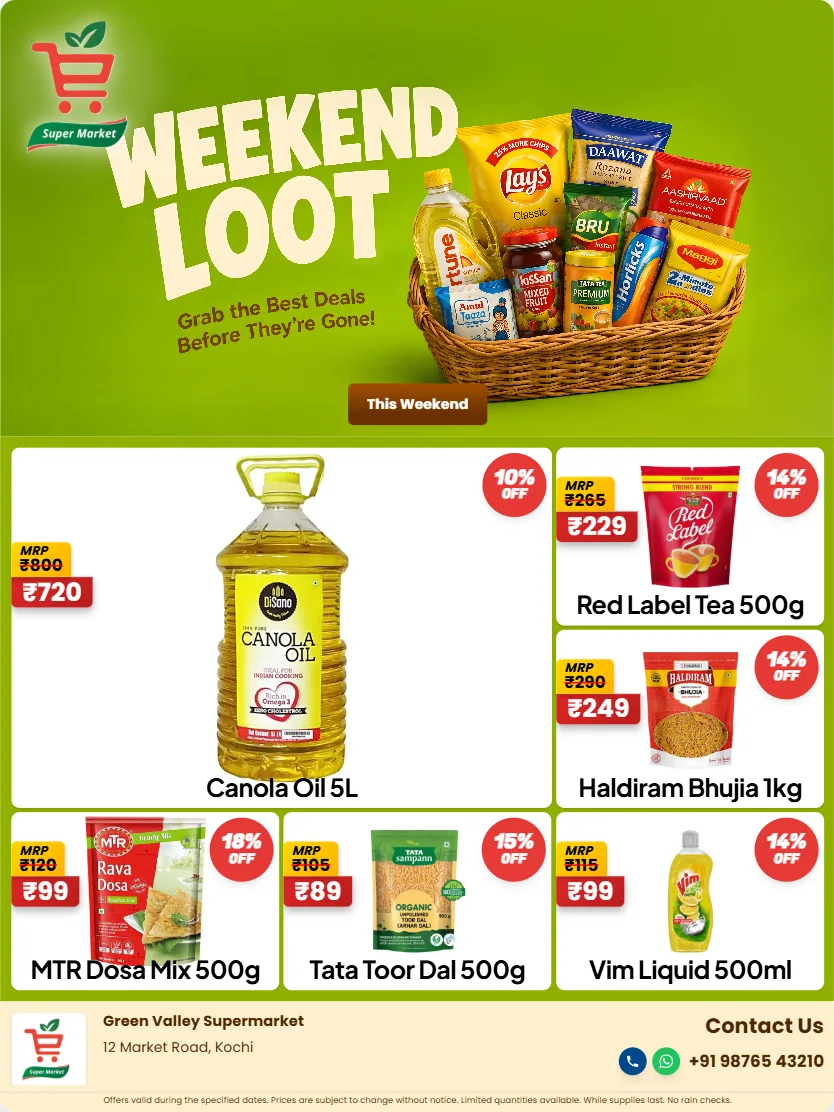
- Portrait, not A4. A tall image fills the phone screen; a wide picture or an A4 page shrinks to a strip in the chat.
- Few products, big prices. Six to nine products read on a phone. A twenty-product page needs zooming that nobody does.
- The old price and the new price, side by side. The MRP (on packed goods) or your regular price, struck through next to the offer price, shows the saving without any maths.
- The dates and your store name. A forwarded flyer travels without your chat around it, so the flyer has to say who you are, where you are, and until when.
Here is a weekend flyer built that way, for a grocery store, priced in rupees (the brands are real, the prices are made up):
And for Status, one offer at a time works better than the whole flyer. These four shelf tags were made from the products on the Tuesday flyer, at the portrait social size:
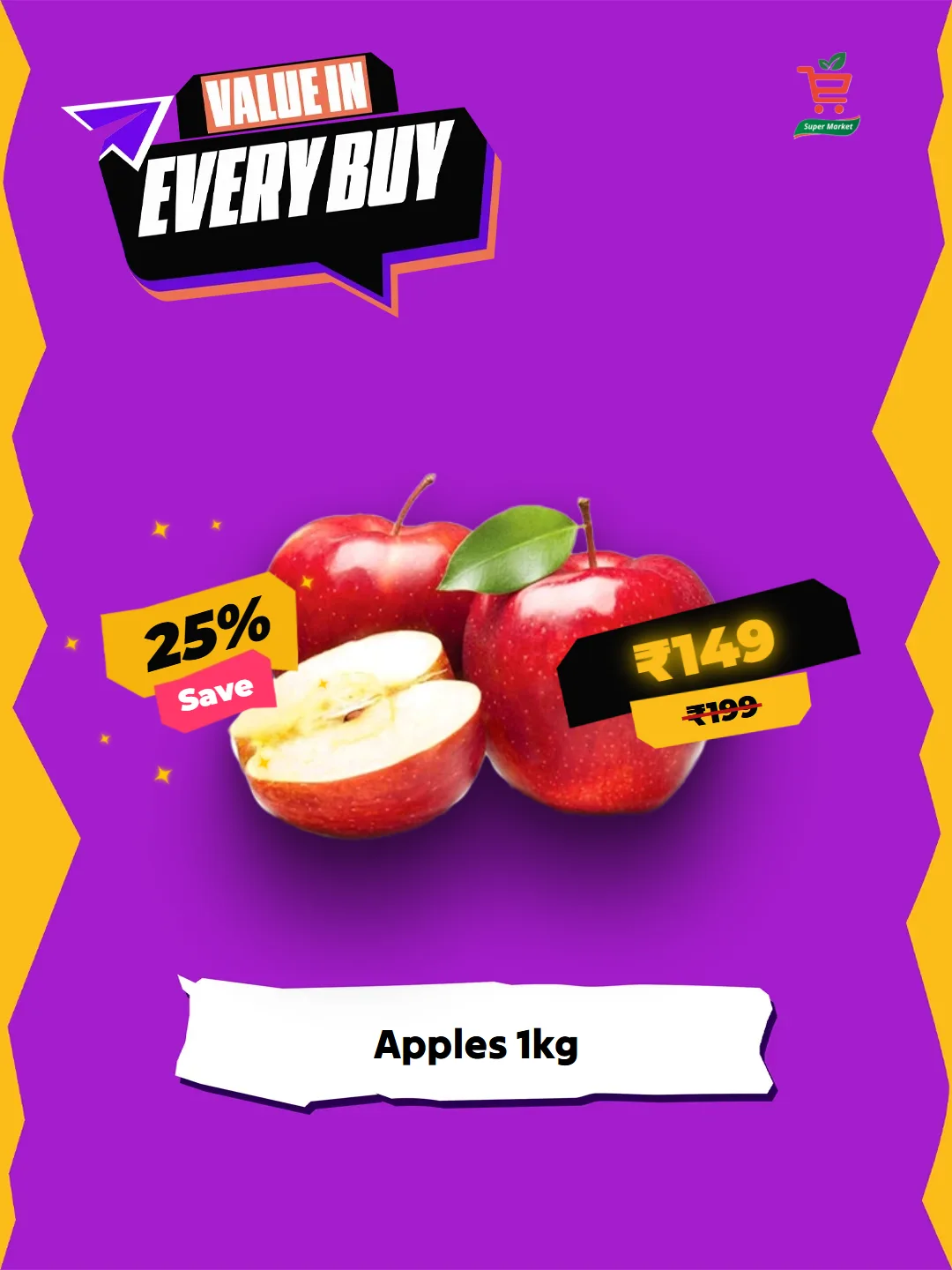
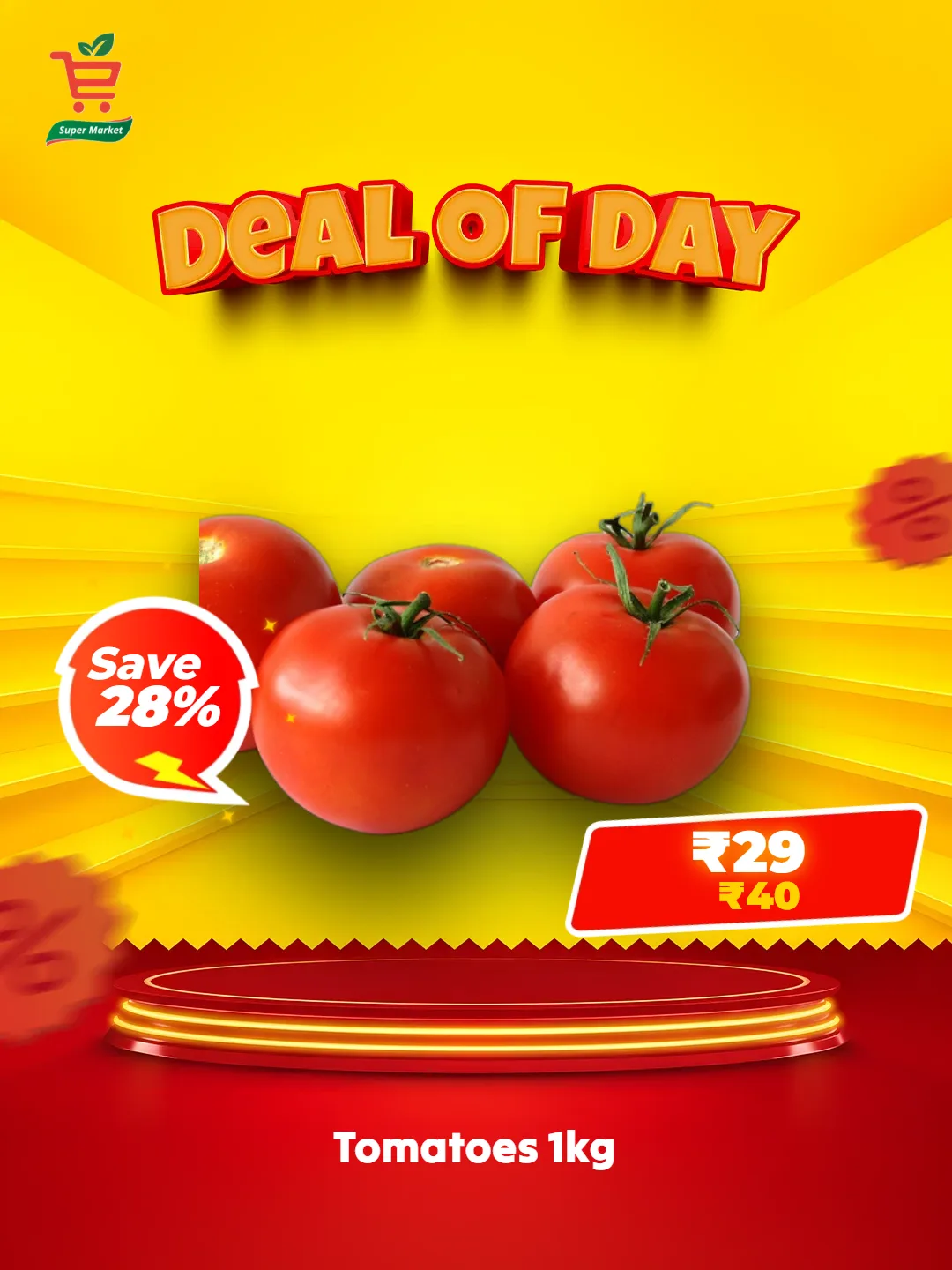
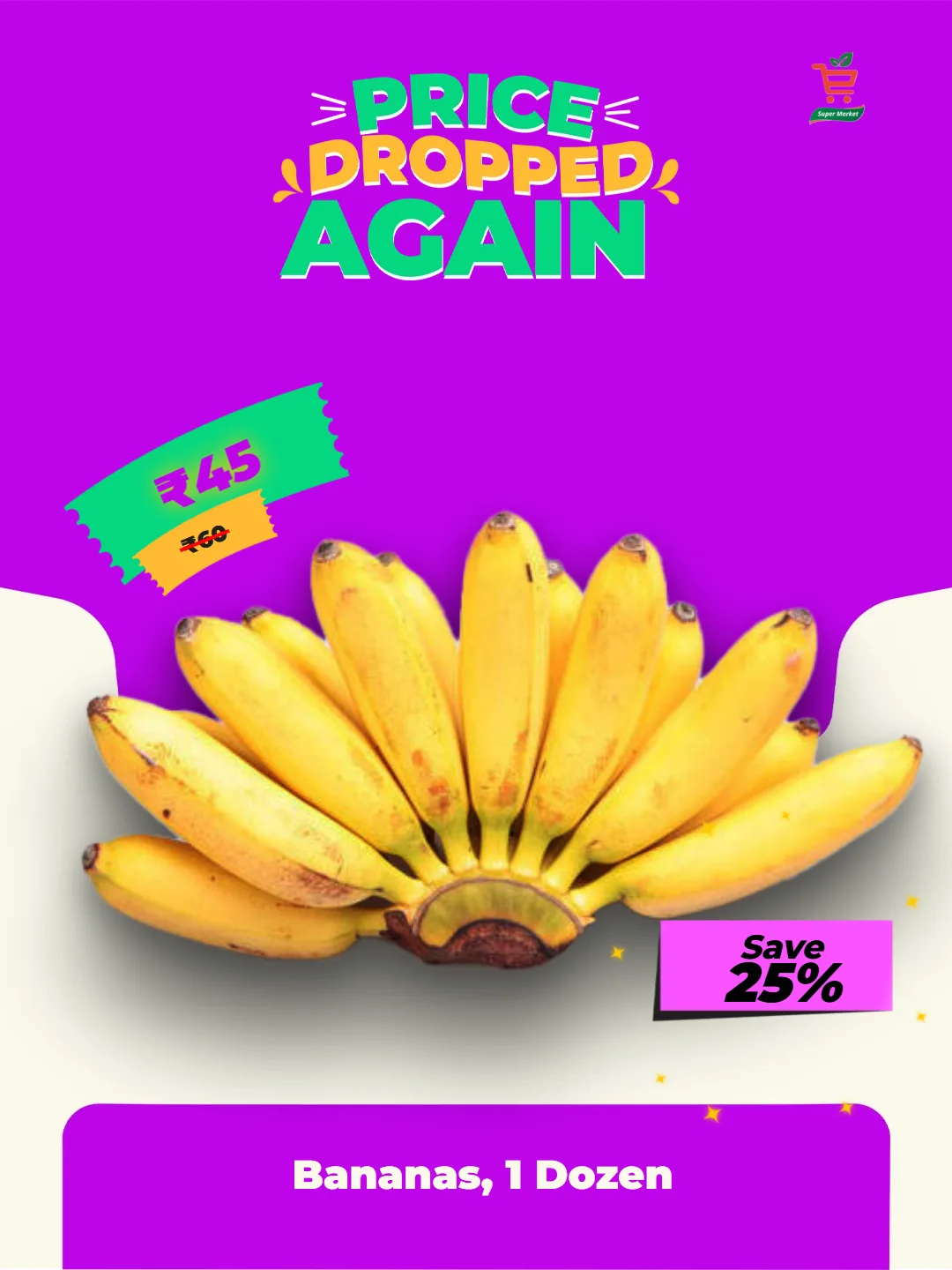
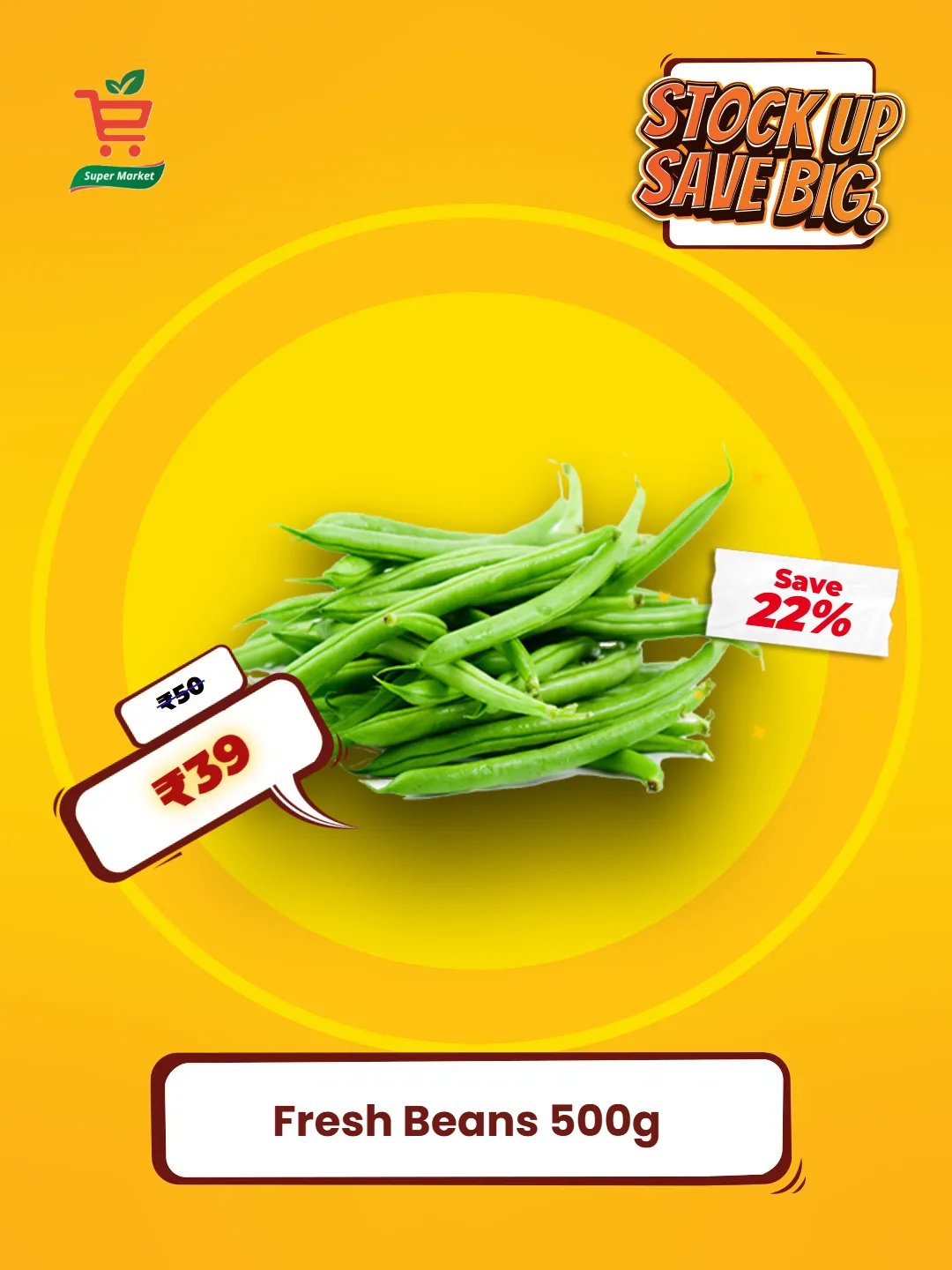
The tags and both flyers were made in Flyerworks; the store and the prices are made up for this post.
How do I make a WhatsApp offer flyer in Flyerworks?
- Pick a template from the 3,000+ retail templates and keep the Social size, the portrait shape that fills a phone screen.
- Add your products by name from the 25,000+ product image library, or upload your own photo.
- Type the MRP and the offer price. The card strikes through the MRP and shows the saving.
- Put the offer dates in the date line, and your store name, address and WhatsApp number in the footer.
- Download the image and send it from your phone, or on a phone share it straight from the editor through the phone's share menu. On Pro and Business, a flyer also gets a public link with a "Share on WhatsApp" button.
The Free plan makes 5 flyers a month, with a small Flyerworks badge on the image. Shelf tags are on the paid plans, and the steps are in how to make shelf tags. The WhatsApp flyer maker page shows more flyers made for sharing.
Where Flyerworks fits, and where it doesn't
It fits a supermarket, grocery or retail store that sends an offer flyer every week and wants it to look right on a phone, with the MRP, the offer price and the dates on every card, without a designer.
Where it doesn't:
- It doesn't send anything. Flyerworks makes the image; you send it from your own WhatsApp. It has no contact list, no broadcast tool and no WhatsApp Business Platform connection.
- It doesn't keep track of who said yes. Permission is yours to ask for and record, in the Business app's labels or on paper.
- It won't stop you sending too often. The rules in this post are yours to keep.
- A chain that sends thousands of messages a week needs a WhatsApp Business Platform provider as well; Flyerworks only makes the flyers they carry.
The supermarket flyer maker page shows flyers built for stores like yours, and the pricing page shows the plans: Pro is ₹1,999 a month.
Questions store owners ask
Can I send offer flyers to every number in my bill book?
No. WhatsApp's policy says you may only contact people who gave you their number and agreed to hear from you[1]. A number on a bill is not a yes to offers. Ask first, at the counter or in a chat.
Will WhatsApp ban my shop for sending offers?
Not for offers people asked for. WhatsApp limits or removes businesses that get a lot of blocks and reports, and it suspends accounts that send in bulk through unofficial apps[1][2]. Send only to people who said yes, and stop when someone asks.
Should I post offers on Status or send them in chats?
Both, for different things. Status is for today's deal, since it disappears after 24 hours and doesn't ping customers for each update[5]. A private chat is for the weekly flyer, sent only to customers who asked for it.
Is the WhatsApp Business API free for sending offers?
No. On the WhatsApp Business Platform, Meta charges for each delivered marketing message, at a rate for each country[7]. The WhatsApp Business app itself is free to download[8], and Status and Channels are part of it.
Sources
- WhatsApp Business Messaging Policy, accessed 2026-11-02
- WhatsApp Messaging Guidelines, accessed 2026-11-02
- Meta for Developers, Get opt-in for WhatsApp, accessed 2026-11-02
- WhatsApp Business App Features, accessed 2026-11-02
- WhatsApp, Status, accessed 2026-11-02
- WhatsApp, Channels, accessed 2026-11-02
- Meta for Developers, Pricing on the WhatsApp Business Platform, accessed 2026-11-02
- WhatsApp Business, Download the WhatsApp Business app, accessed 2026-11-02
- WhatsApp, Setting up your Community, accessed 2026-11-02
- WhatsApp, Groups, accessed 2026-11-02
- Meta for Developers, Marketing templates, accessed 2026-11-02