How to make shelf tags for your store, start to finish
A shelf tag is the small sign next to a product that carries the price, and often an offer. Handwritten ones are quick, but they're hard to read from a distance and hard to keep consistent. Printed ones take about a minute per product once you know the steps, so here they are, using the Flyerworks shelf tag maker.
You'll want a computer for this. The editor runs in a phone browser too, with fewer features.

Before you start
Have the product name, the selling price and, if you want to show it, the MRP. If the tag will show an MRP, it has to match what's printed on the pack. You can sell below MRP but never above it.[1]
The steps
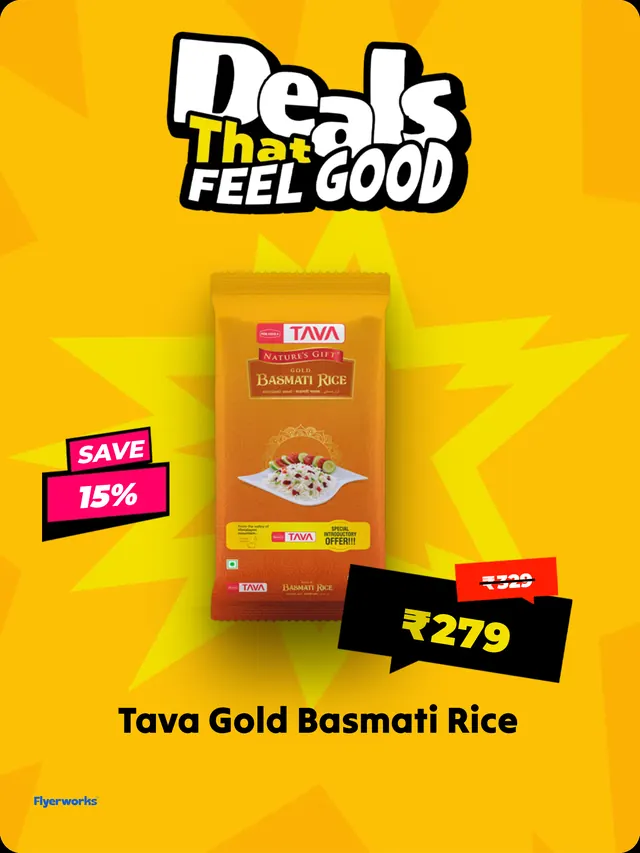
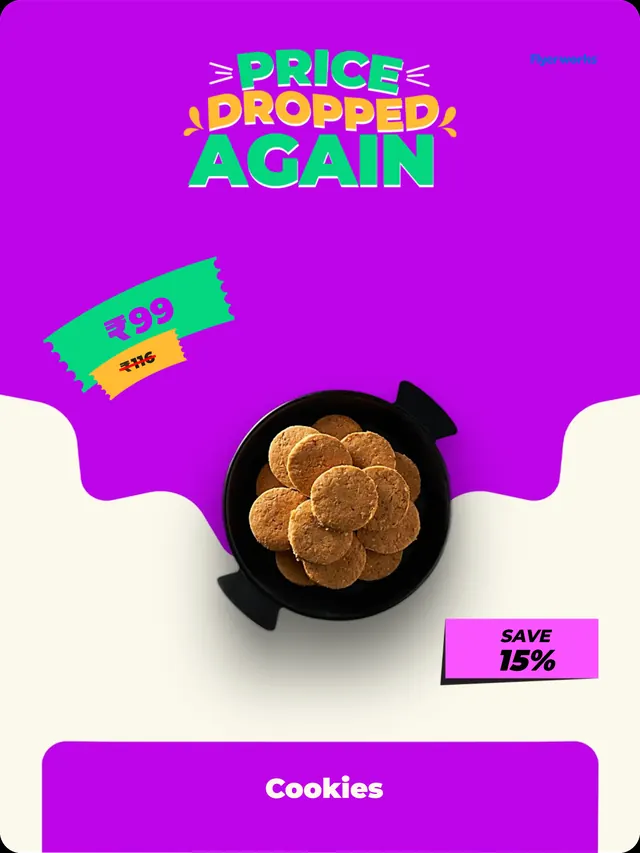
1. Open the shelf tag editor and pick a design. There's a library of tag designs: plain price tags, sale tags, price-drop tags and bigger offer tags. Pick the one that matches the job. A plain price tag suits a regular shelf, and a sale design suits an offer you want noticed from a few steps away.
2. Add the product. Search the product database for the item, which has 25,000+ product images, or use your own photo if it's not there. The name comes with it. You can change the name or the picture at any time.
3. Set the price, the MRP and the offer. Type your selling price. Add the MRP if you want customers to see the saving. The editor draws a strike line through the MRP, and you can change its colour and how strong it looks. There are switches to show or hide the price, the MRP and the offer, so one design can serve a full-price item and a discounted one.
4. Match it to your store. Change the colours and fonts so the tag fits your shop. Turn on your logo if you want it on the tag and set how large it appears.
5. Pick a size. You get three: Social, A5 and A4. Social is a portrait image for sharing on screens and WhatsApp. A5 and A4 are for printing. Shelf tag sizes covers the pixel and paper sizes in detail.
6. Download and print. The download is a PNG image. Print it on plain or thick paper, cut it out, and put it on the shelf edge or in a holder.
What each plan includes
On the Free plan you can open the editor and see a preview with a watermark, so you can try the shelf tag editor free before you decide. The download is what needs a paid plan.
- Free: a watermarked preview, no downloads.
- Starter: 5 shelf tags a month.
- Pro and Business: unlimited shelf tags.
A few things I'd do
Make the offer tags first. A shelf full of plain price tags with three bright offer tags gets noticed. A shelf full of bright ones doesn't.
Print one and put it up before you make thirty. Stand at the aisle end and check whether you can read the price. If you can't, pick a larger size or a plainer design.
For ideas on what to put on an offer tag, see nine shelf talker and shelf tag examples.
What Flyerworks can't do here
The shelf tag download is a PNG. There is no PDF sheet layout for cutting many tags from one page, so you'll be setting that up in your printer or in another program. It also doesn't print for you. And it works best on a computer.